Getting started with Mytty
日本語版は getting-started_ja.md にあります。
Install Mytty
Mytty needs macOS 15 or later on Apple Silicon. Download the latest Mytty.zip from Releases, unzip it, and drag Mytty.app into /Applications.
If you want to build it from source instead, see Build the macOS app from source.
Launch it
Double-click the Mytty app to launch it.
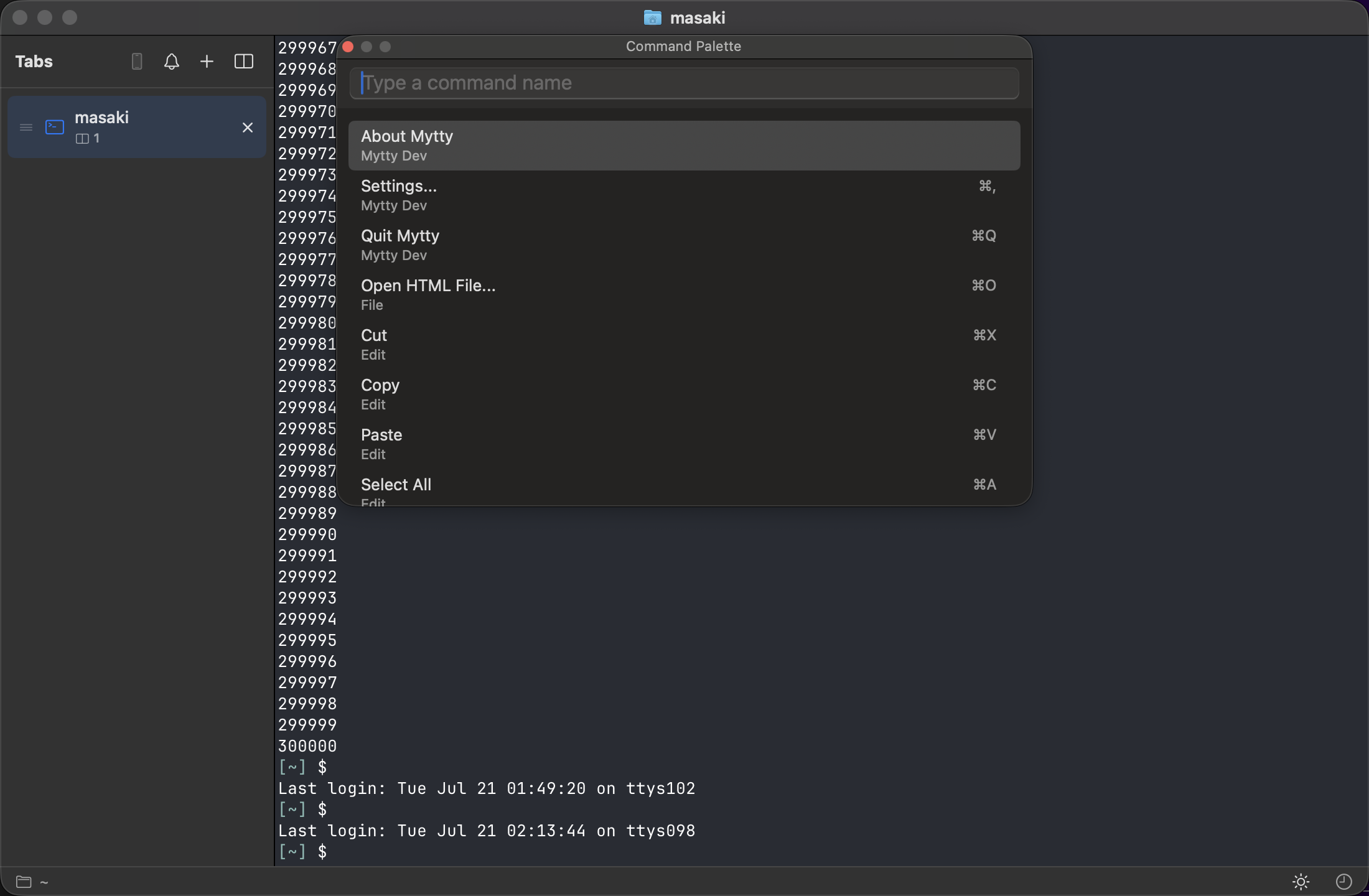
Command-Shift-P opens the command palette, from which you can run a wide range of commands. You can also use keyboard shortcuts or the menu bar.
Windows, tabs, and panes
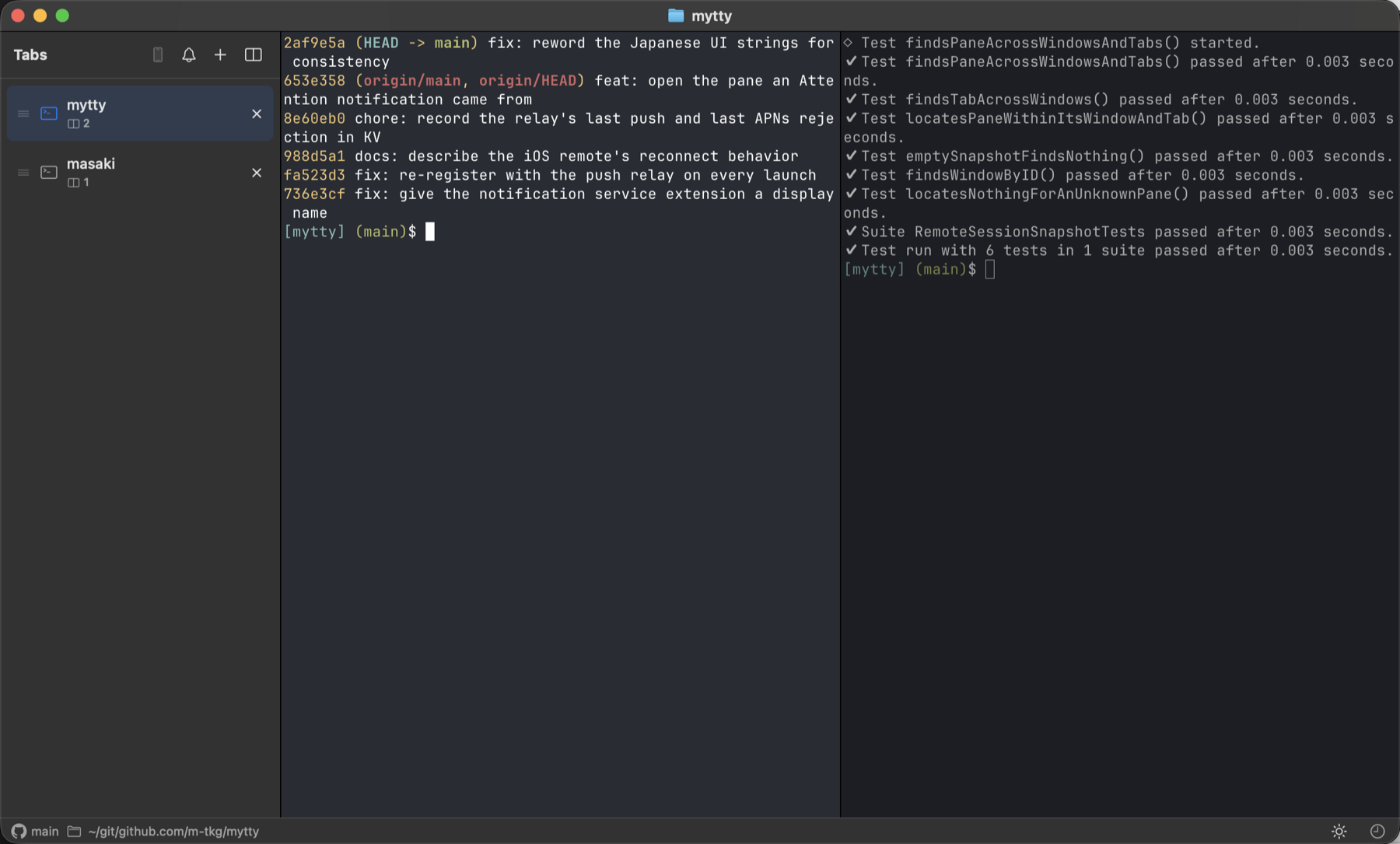
The area where a terminal is shown is called a pane. A window can hold multiple tabs, and each tab can be split into multiple panes.
New Window opens a new window.
New Tab opens a new tab.
Split Right creates a new pane to the right of the currently active pane.
A tab's panes can be split further, in any of the four directions.
Splits normally divide the active pane. If you turn on Hold split shortcut to split the whole tab in Settings, holding a split shortcut instead adds the new pane along the tab's outer edge — for example, a full-height pane to the right of a tab that is already split top and bottom. A quick tap still splits the active pane.
Moving and swapping panes can also be done with keyboard shortcuts. Check Settings to see what's available and try a few out.
After closing a tab or pane, you can restore it from Recently Closed Items.
This only works while Mytty is running; quitting the app clears the history.
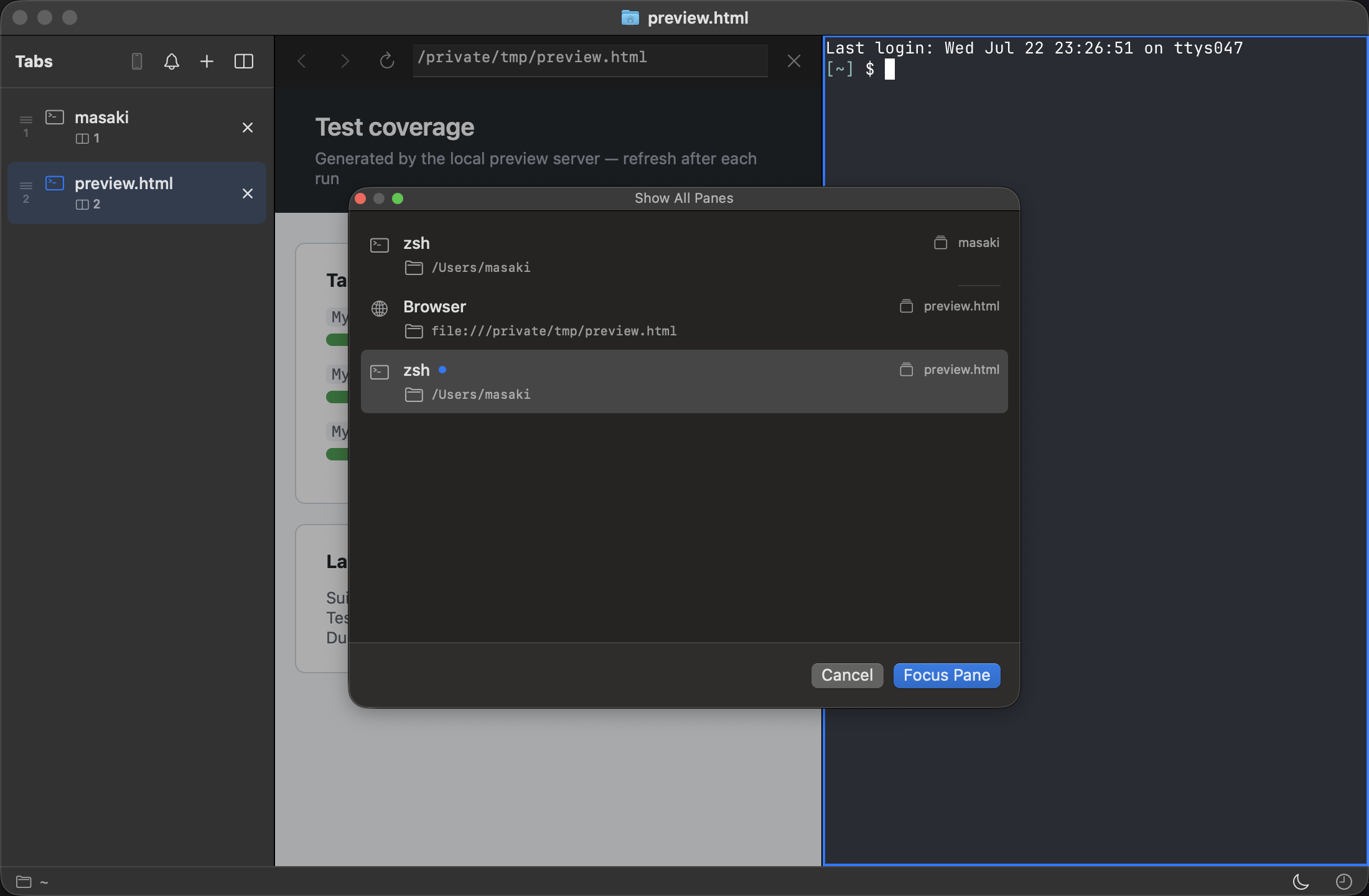
Once you have a lot of tabs and panes, opening Show All Panes lists every pane so you can jump straight to one.
Status bar
The status bar follows whichever pane is focused, showing its working directory and, when the directory is under Git, the repository and branch.

Clicking the GitHub icon opens the repository's GitHub page.
Clicking the folder icon opens that directory in Finder.
When an AI agent is running, the status bar shows the agent name, model, and context/limit information.
Clicking the moon icon lets you toggle whether Mytty prevents sleep while an AI agent is running.
Once a tab is split, each terminal pane also gets a thin bar of its own along its top edge: the repository mark, the branch, the agent, and either the agent's session ID or the name of the program running in the pane. The model and the remaining context are in its tooltip. Turn it off under Settings › Shell › Appearance.
Quit and relaunch
Quit Mytty while you still have tabs and panes open, then launch it again: tab state, pane layout, and any AI agent sessions are all restored.