Record a pane as a GIF
You can capture what's happening in a pane (a build, a demo, an agent at work) as a GIF animation.
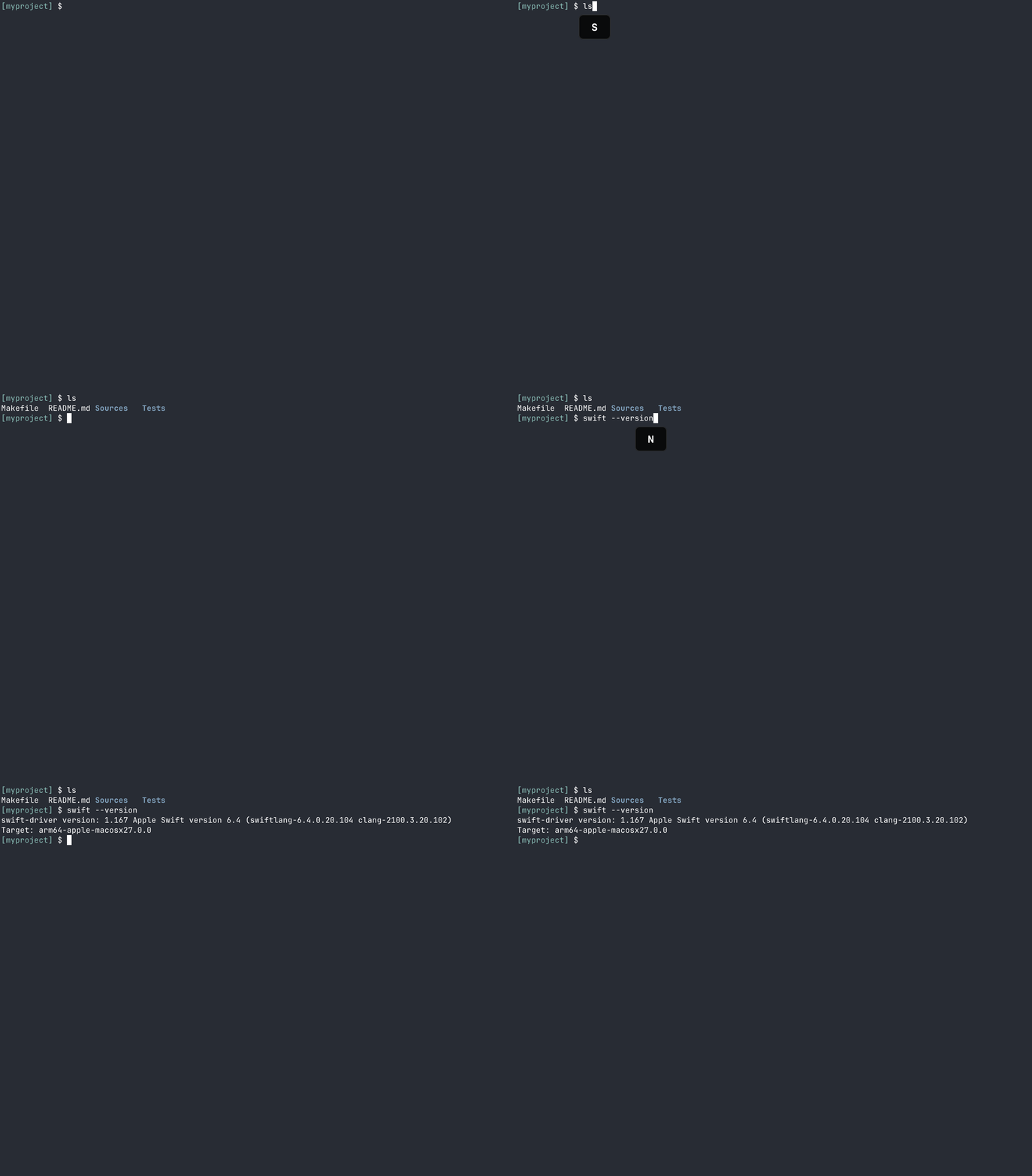
Start and stop a recording
Focus the pane you want to record and run Start/Stop Recording. A stop button appears on the tab while it's recording.
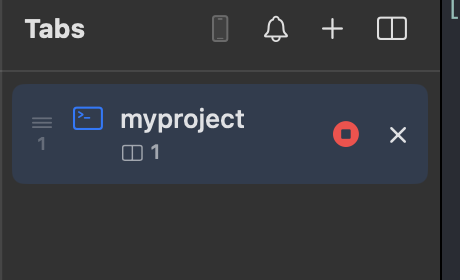
Recording stops when you stop it yourself, or automatically after 60 seconds. A save panel opens afterward for you to choose where to write the GIF file.
The GIF is written at one pixel per point rather than at your display's Retina resolution. GIF pays for resolution twice over — every changed pixel is encoded, and its 256-color palette compresses antialiased text poorly — so the full-resolution file was roughly twice the size for the same recording, without being twice as useful to share.
Show pressed keys in the recording
Turn on Show pressed keys in pane in Settings to display the name of each key below the cursor as you type. This works outside of recording too, but it's especially handy for recordings and demos.
Recording a remote pane
Recording also works on a remote pane mirrored from another Mac. Pressed keys aren't shown there, since the client has no local cursor position to draw the label around.